
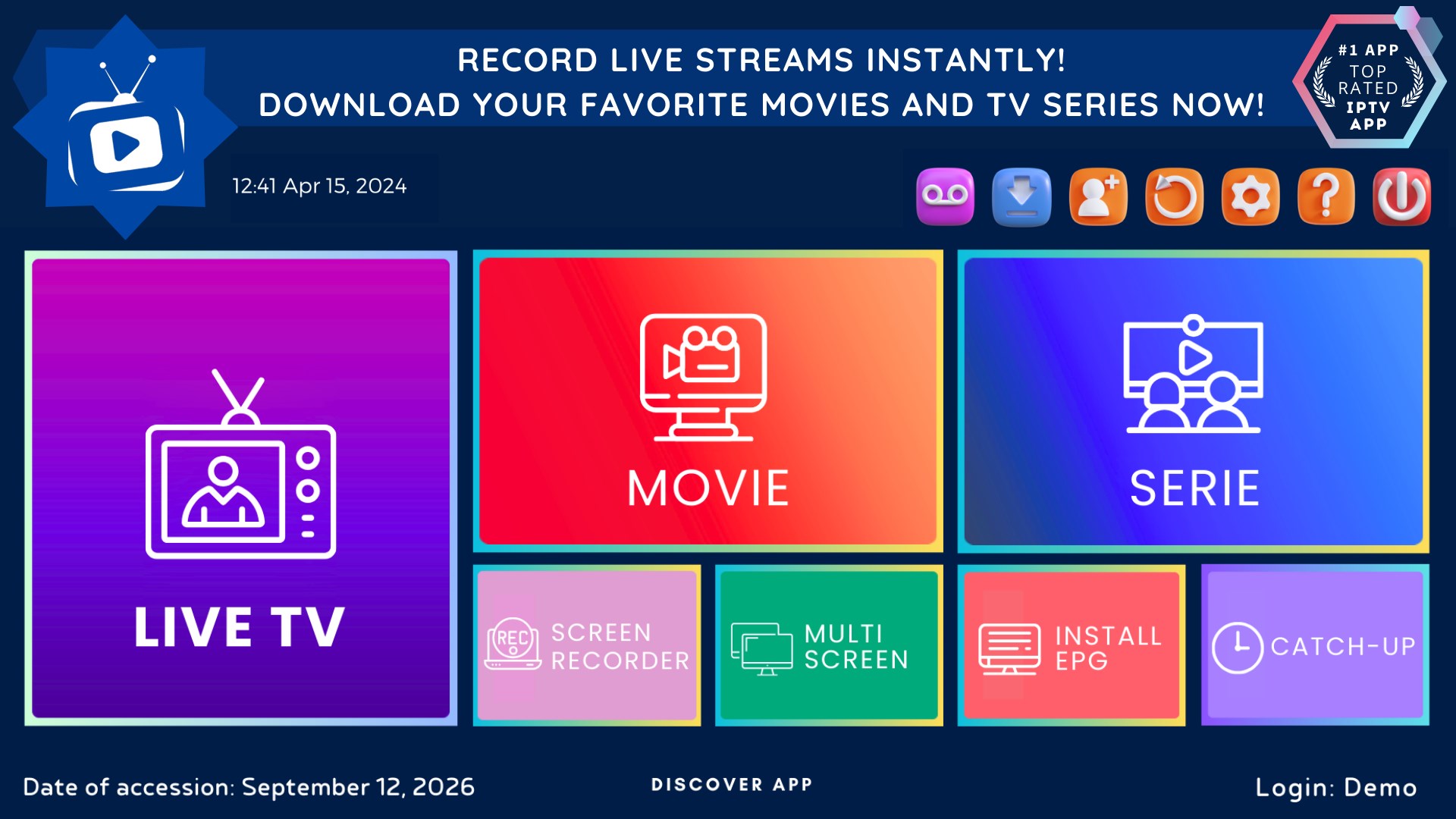
how do you get iptv Internet protocol television delivers live channels and on‑demand libraries over the internet, replacing traditional cable and satellite with apps and media players. It supports live TV, VOD, catch‑up, and near‑VOD schedules inside a single streaming experience.
To begin, viewers pick a reputable service—examples include Hulu + Live TV, YouTube TV, Sling, and Fubo—create an account, install the app on a preferred device, and sign in. Most modern platforms provide polished installers for smart TVs, streaming sticks, phones, tablets, and PCs so setup is usually a quick download and login.
A VPN can help when traveling or on restricted networks by masking location and reducing content throttling. Stable speeds (roughly 20 Mbps per HD stream) and current hardware improve reliability and prevent buffering.
Legal, verified providers offer better uptime, support, and stream quality than unverified sources. This guide will cover requirements, picking a reputable provider, device‑specific setup, responsible VPN use, and basic optimization so readers can start streaming with confidence.
Key Takeaways
- Internet protocol television streams TV and on‑demand content over the internet.
- Start by choosing a reputable service, subscribing, installing the app, and signing in on a device.
- Most services work across smart TVs, sticks, phones, tablets, and computers.
- Use a VPN for access on restricted networks and to limit throttling when needed.
- Aim for stable broadband (around 20 Mbps per HD stream) and modern hardware for best results.
IPTV in 2026: what it is, how it works, and why people are switching
Internet protocol television routes live channels, on‑demand video libraries, and time‑shifted TV over standard internet protocol networks. This setup brings real‑time sports and news, full VOD catalogs, and limited‑window catch‑up into one app experience.
Internet Protocol Television explained: live, VOD, and time-shifted TV
Live formats mirror traditional broadcasts for sports and news channels. VOD libraries hold movies and series from services like Netflix and Hulu. Time‑shifted and near‑VOD options let viewers replay shows or pick staggered start times for scheduled programs.
How it compares to cable and satellite for U.S. viewers
Compared with cable and satellite, protocol television usually costs less and removes dish or set‑top hardware. It offers stronger device flexibility—phones, tablets, smart TVs, and streaming sticks all work the same way.
Drawbacks include the need for stable high‑speed internet and occasional changes in channel lineups due to licensing. Many legal providers publish clear channel lists and bundle channels with VOD so subscribers can mix services to match their favorite shows.
- Adaptive streaming adjusts quality and bitrate to reduce buffering.
- VPNs can help maintain subscription access while traveling by connecting to supported locations.
- Provider choice affects channel availability, news coverage, and regional sports access.
Before you start: requirements, devices, and connection quality
A reliable internet connection and compatible hardware are the two basics every reader should verify first. Aim for roughly 10 Mbps for SD, 20 Mbps for HD, and near 25 Mbps for UHD. Stability, low latency, and solid Wi‑Fi signal matter as much as raw speed to avoid mid‑show buffering.
Internet speed and stability
Test both wired and wireless links. Use Ethernet for primary streaming device when possible. Place a Wi‑Fi 5/6 router centrally and limit competing traffic during live events.
Compatible devices and apps
Most services publish native apps for Samsung and LG smart TVs, Roku, Apple TV, Google TV/Android TV, and Amazon Fire TV. Laptops and phones can stream directly or cast to a TV when an app is unavailable.
Accounts and formats
Official apps accept a subscription login. Advanced users may add an M3U or Xtream Codes URL into players like Kodi or IPTV Smarters. On Android/Fire OS, enable Unknown Sources only for trusted APKs, then disable it again for security.
- Fallback: use a provider website or web app on Windows/macOS if a native app is missing.
- Check: app version and device generation before subscribing to ensure modern codecs and smooth playback.
Choosing a reliable IPTV provider and service safely
A trusted service with clear licensing and channel details is the safest starting point. Reliable providers publish proof of licensing, a full channel list, and explicit device support. That transparency signals legal rights to stream news, sports, and studio content.
Legality, channels, and EPG
Check the published channel list and VOD catalog size. Look for local news, major sports feeds, kids’ networks, and regular title updates.
Evaluate the EPG for accurate times and clean program metadata. A good guide reduces missed shows and improves scheduling across devices.
Streaming quality, uptime, and device support
Test peak‑time performance: stable HD or 4K, adaptive bitrate, and minimal buffering matter most. Providers with strong server infrastructure note average uptime and CDN use.
Confirm multi‑screen limits and native apps for smart TVs, sticks, phones, and desktops. U.S. support channels and clear refund terms shorten downtimes and lower risk.
Trials, pricing, and trust signals
Prefer short trials or week‑long plans to validate app responsiveness and VOD playback before committing. Avoid unlicensed services with unusually low prices; legal offerings carry documented business names and transparent subscription policies.
How do you get IPTV: the simple setup flow
Pick a lawful live TV provider, finish the subscription steps, and note the welcome email with any playlist links. Popular U.S. choices include Hulu + Live TV, YouTube TV, Sling, and Fubo; these services publish clear account and device instructions.
Subscribe and prepare account details
Complete the subscription on the provider’s website and confirm the account email and password. Save any M3U or Xtream Codes URLs shown in the dashboard; those links are needed for player installs.
Install official apps and sign in
On smart TVs and streaming sticks, download the official app from the device store, then sign in so the service can fetch channels, VOD content, and the EPG. If an app is missing, use the web app or a supported player on a secondary device.
Use players and safe sideloading
For Kodi or IPTV Smarters, paste the M3U/URL from the provider and wait for channels to populate. On Amazon Fire TV, use Downloader and enable Install Unknown Apps only for the install step, then disable it to limit risk from third-party sources.
Verify playback and optimize
Check several live channels and a few on‑demand videos to confirm audio sync, subtitles, and navigation. Adjust quality settings to match the connection and test the same account on another device within the plan’s simultaneous stream limit.
- Confirm the EPG loads and favorites or search work for quick access to shows.
- Note the provider support website and help articles for credential, playlist, and app setup details.
Device-by-device installation: apps and IPTV players
Each streaming device has a few quirks; a short checklist keeps installs fast and reliable. Start by checking the device store for apps available under the provider name, then sign in and confirm channels and VOD load promptly.
Smart TVs and Google/Android TV
Search the Samsung or LG app store, or use Google Play on Google TV/Android TV. Download the app, sign in, and test live news and on‑demand content.
Amazon Fire TV Stick
Install from the Amazon Appstore when possible. For legitimate apps not listed, use Downloader: enable Install Unknown Apps, fetch the APK, install, then disable the setting for safety.
Apple TV, iOS, and Roku
On Apple TV and iOS, open the App Store, install the player, enter any M3U or URL credentials from the provider, and verify playback.
If a Roku app is missing, cast from an Android/iOS device or mirror the screen to watch live channels and news.
Desktops and Android devices
Use native desktop apps or sign in on the provider website when an app is unavailable; this is handy while traveling. On Android, enable Unknown Sources only for trusted APKs and turn it off after install.
- Tip: Test Wi‑Fi and use Ethernet adapters for boxes or TVs to stabilize networks and reduce buffering.
- Support: Find app help and support links inside each platform’s settings or the provider website.
Using a VPN responsibly with IPTV in 2026
When traveling or on a limited network, a VPN can preserve access to regional channels and protect viewing data. It masks the IP address so a subscription stays reachable from hotels, work Wi‑Fi, libraries, or foreign networks.
When a VPN helps
Use a VPN for travel, restricted networks, or when an ISP targets streaming traffic. Encryption also guards privacy on shared networks and helps avoid content‑based throttling.
Choosing locations and protocols
Connect to a server in the country where the subscription is licensed so the app can authenticate and the EPG remains accurate.
Pick fast, modern protocols and streaming‑optimized servers to preserve video quality and reduce buffering under variable connection conditions.
Best practices and deployment
- Prefer app‑level VPN for phones and laptops; use router‑level for whole‑home coverage on smart TVs and boxes.
- Keep the VPN app updated and check the provider’s website or support articles if authentication fails.
- Respect local laws and the subscription’s terms to stay compliant.
| Setup | Device fit | Pros | Cons |
|---|---|---|---|
| App‑level VPN | Phones, laptops, some Android boxes | Easy to enable per device, better for testing | Doesn’t cover smart TVs without apps |
| Router‑level VPN | Smart TVs, streaming sticks, all home devices | Covers entire network; no per‑device install | Setup is complex; may affect overall speed |
| Split tunneling | Advanced users | Only routes streaming through VPN to save bandwidth | Requires router or app support |
Optimize and troubleshoot your IPTV experience
A few quick checks can stop buffering and restore reliable live viewing.
Stop buffering: improve Wi‑Fi, go wired, and right‑size quality settings
Restart the router and any affected devices first. That often clears short network issues.
Switch a primary player to Ethernet when possible. Wired links stabilize the connection and cut packet loss.
Reduce in‑app quality to match current bandwidth during heavy usage. That reduces rebuffering while preserving the show.
Fix missing channels and playlists
Refresh the playlist URL or reload the M3U/Xtream link in the player. Many missing channels return after a reload.
Verify the account is active and check the provider’s website or support channels for outages. Known incidents show up quickly on the service site.
App issues: clear cache, update, or reinstall
Clear app cache or app data, then restart the device. Corrupt temporary files often cause playback errors.
If problems persist, update or uninstall and reinstall the iptv app. New releases fix bugs and improve video and menu performance.
Network hygiene and hardware
Don’t run heavy downloads or gaming while streaming. Schedule large updates off‑peak to keep the network free for live streams.
Upgrade to modern streaming sticks or a newer smart TV when possible. Current hardware decodes recent codecs and improves overall quality.
- Quick wins: restart gear, reduce competing devices, switch to Ethernet.
- Check content: test live channels, VOD, and a separate category to isolate issues.
- When contacting providers for support, include device model, app version, playlist type, and time of the issue to speed answers to questions.
Tip: Keep apps and firmware current. Periodic updates often deliver stability improvements that enhance the streaming experience over time.
Conclusion
A sensible first step is picking a legally licensed U.S. service with the right channel mix for the household. Confirm device support and test the service with a short trial to verify live video, on‑demand playback, and the program guide.
Install the official app or add the provider playlist/URL to a trusted player, then confirm streams and EPG load correctly. Optimize quality settings to match a stable connection (about 20 Mbps per HD stream) and update firmware for best results.
When traveling or on restricted networks, a responsibly configured VPN can preserve access from approved locations while honoring terms and laws. For issues, clear cache, update or reinstall the app, and check the provider status page for outage information.
Choose licensed providers with transparent channel lists and support. That approach delivers steadier picture quality, reliable support, and a safer subscription than risky alternatives.
